Starting from IIS 6.0, an ISAPI Extension can be added to any Web site or Application, as a wildcard script. By wild card script, I mean an ISAPI extension can be registered with IIS to execute on every incoming request on Web site/Application. All we need to do it register the extension as a wildcard handler. A wildcard handler receives the incoming request, before the actually intended recipient. There may be multiple wildcard handlers registered on the same site or application, which will all be executed in order. The ISAPI Extension, when invoked by IIS, can process the request and pass the request to another handler in chain. Below is how we will register the wildcard script on an application (or website):
IIS 6.0
- Start IIS Manager and expand the tree on the left side.
- Select any Application/ Website on which you want to install the wildcard handler. Right click and select Properties.
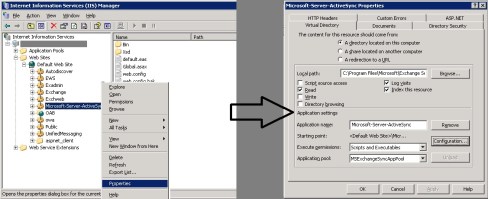
- Application Properties
- In the Application Settings section on Home Directory or Virtual Directory tab, click on the Configuration.
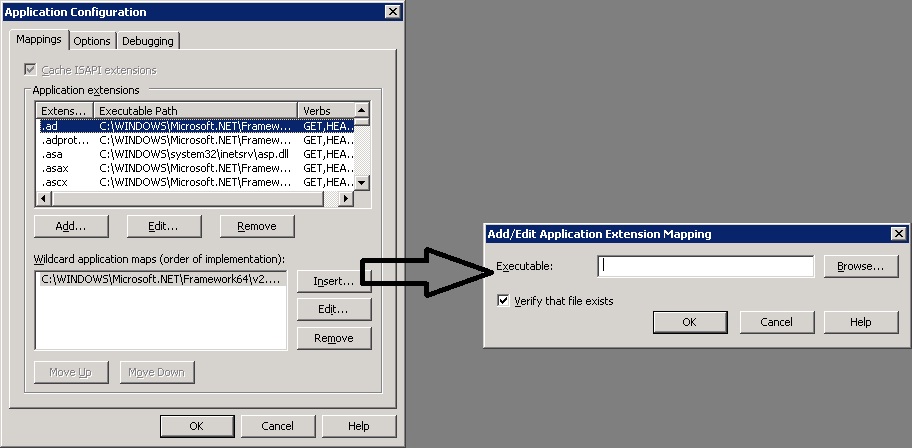
- In the Wildcard Application Maps section on the Mappings tab, click the Insert button.
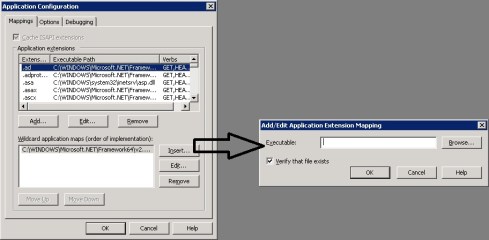
- Specifying a wildcard handler DLL
- Type or Browse the path of our ISAPI Extension DLL and click OK 3 times to go back at work.

IIS 7.0
- Start IIS Manager and expand the tree on the left side.
- Select any Application/ Website on which you want to install the wildcard handler.
- On the right pane, within the features view, double click on the Handler Mappings icon under IIS section (as shown below).

- The Handler Mappings Shortcut in IIS 7.0
- Once the page containings all the existing mappings opens, locate the link Add Wildcard Script Map… at the right side and click it (as shown below).

- Link to Add a Wildcard Handler Script
- In the resulting dialog, specify the path of our ISAPI extension DLL and give it a name (Below):

- Specify the ISAPI Extension DLL
- We are done 🙂


 Vipul Pathak
Leave a comment