The script (or the ISAPI Extension) that we are going to deploy and grant additional permissions, will be writing to a File and hence need WRITE permissions as well. Here is how we will do it:
Find out the User Id
IIS’s World Wide Web Publishing Service executes using the Local System account, but it usually impersonates a different account to execute any ISAPI extension. Do the following to discover which User Id is being used by IIS for impersonating and running the extension:
1. Start Internet Information Services Manager from Administrative Tools under Control Panel.
2. Expand the tree on the left side and select the Website under which the ISAPI extension will be deployed.
3. Next, on the right side, under the IIS group, double click on the Authentication icon (see below):

4. In the resulting listing, under the Features View tab, choose Anonymous Authentication and click on the Edit action.
5. The identity selected in the resulting dialog box is used by IIS for impersonating (see below):

If the identity select isn’t shown clearly, but instead the Application Pool Identity is shown as selected, here is how to find which account is used by the Application Pool:
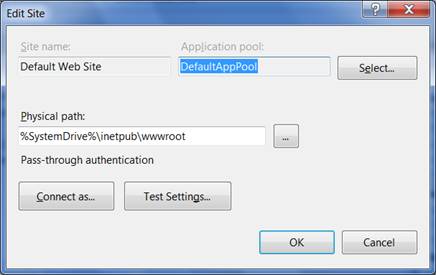
6. From the left pane, select the Website and click on Basic Settings link from the Actions area at the right. The resulting dialog will tell us, which Application Pool is being used by this Website (see below):
7. Click Cancel and dismiss the dialog. Next, from the left pane, select the Application Pools node just above the Sites node. The right pane will show available application pools. Select the Application Pool, that’s being used by our Website.
8. Now click on the Advanced Settings action under the Actions area on the right side (see below):
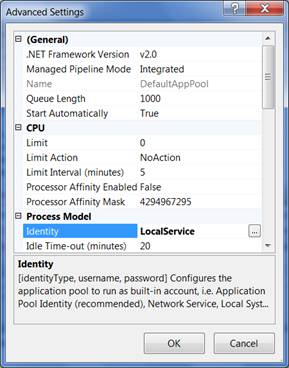
9. The Identity property shows the account used by the application pool.
Setting the Directory Permission on NTFS
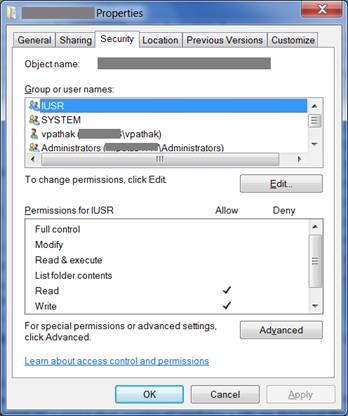
Now that we know, which account is used by IIS for the purpose of impersonation, let’s set WRITE permissions on the correct directory for the User Id used by IIS. Let’s say- we have an ISAPI Extension or a script that creates or updates a file on the local file system. Based on what we know, we need to grant WRITE permission on a folder where our ISAPI Extension will write. Now since, we know the User Id that will be used by IIS for impersonation, let grant write permission to that user, (see below):
Finally, restart IIS. From the command line, use the command IISReset. We are done J.
 Vipul Pathak
Leave a comment